Most people check backlinks once, right after something goes wrong. Rankings drop, traffic dips, and suddenly everyone wants to find backlinks to site pages and understand what happened. By then, you’re already behind.
Backlink data is most useful when used offensively, not defensively. The sites outranking you aren’t just better – they’re linked from better places. Once you can see exactly which domains are sending them authority, you have a real target list. Not guesswork.
This guide covers everything: how to find backlinks of website pages, which tools let you check backlinks of website free of charge, how to use Google for what it actually supports, how to read a backlink profile without chasing the wrong numbers, and how to turn all of that into a link-building action list.
What Are Backlinks?
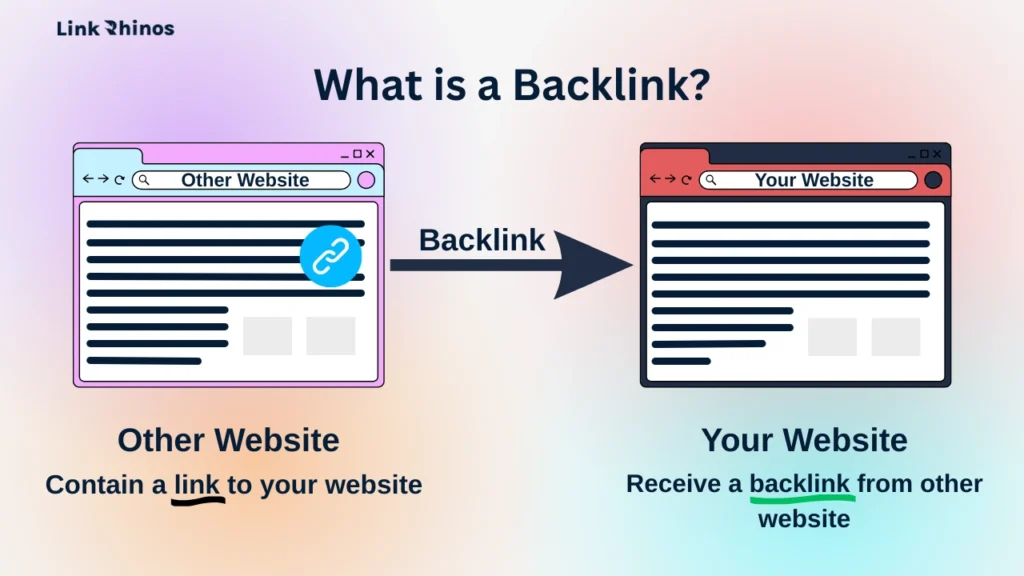
A backlink is any link from an external website pointing to a page on your site. When a site links to you, it passes a relevance and authority signal to Google. The more quality sites that link to yours, the more Google treats your domain as a credible source on a given topic. Knowing how to find backlinks of website pages yours and your competitors’, tells you exactly which domains are driving those rankings.
Why Does Finding Backlinks Matter?
Finding this data matters for two reasons. First, you need to know what’s already pointing to your site – good and bad. Second, and more importantly, you need to know what’s pointing to your competitors so you can target the same sources. Once you know how to find the backlinks of a website that’s outranking you, you have a real list of targets – not guesswork.
Can You Find Backlinks of a Website Using Google Search Operators?
No, not effectively, and not for any site other than your own. The question of how to find backlinks to a site using Google – specifically, a competitor’s site – comes up constantly, and the honest answer is that Google’s native tools are not built for this.
The link: operator in Google used to surface inbound links. It was deprecated. If you type link:example.com into Google today, you’ll get a handful of irrelevant or outdated results – not a backlink report. Google officially retired this feature in 2017. So, how to find backlinks of a website using Google in a way that actually works? The short answer is: Search Console for your own domain only.
The site: operator shows the pages Google has indexed on a domain. It tells you nothing about which external sites are linking to it.
If you’ve read an article suggesting there’s a way to find backlinks of a website using Google search operators alone, that article is either outdated or wrong. The only legitimate way to find backlinks to a site using Google’s own tools is Search Console – and that’s limited to domains you’ve verified. For any competitor’s domain, you need a third-party crawler. There is no workaround. If you need to find backlinks to site pages you don’t own, skip Google entirely and go straight to the tools below.
Best Free Tools to Check Backlinks of Any Website
Several tools offer free link-checking with varying levels of depth. None match a paid subscription, but for spot-checks, partner vetting, and quick competitor reads, they’re more than enough to get started.
Ahrefs Free Backlink Checker
The Ahrefs Backlink Checker (ahrefs.com/backlink-checker) is the strongest free option available. It’s the most reliable way to check backlinks of website for free – no account required. It shows the top 100 inbound links for any domain, the domain’s DR score, total referring domain count, and total link count
How to Use Ahrefs Backlink Checker:
Step 1: Go to ahrefs.com/backlink-checker.
Step 2: Enter the domain or URL you want to check.
Step 3: Click Check backlinks.
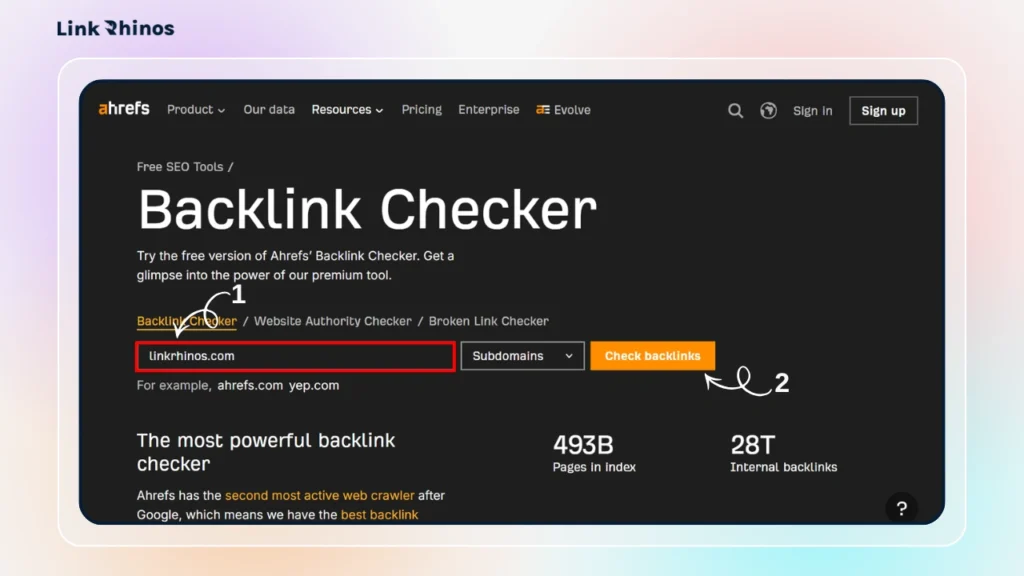
Step 4: Analyze the results:
- Domain Rating
- Referring Domains
- view anchor text and target URL’s
- Inspect Referring pages
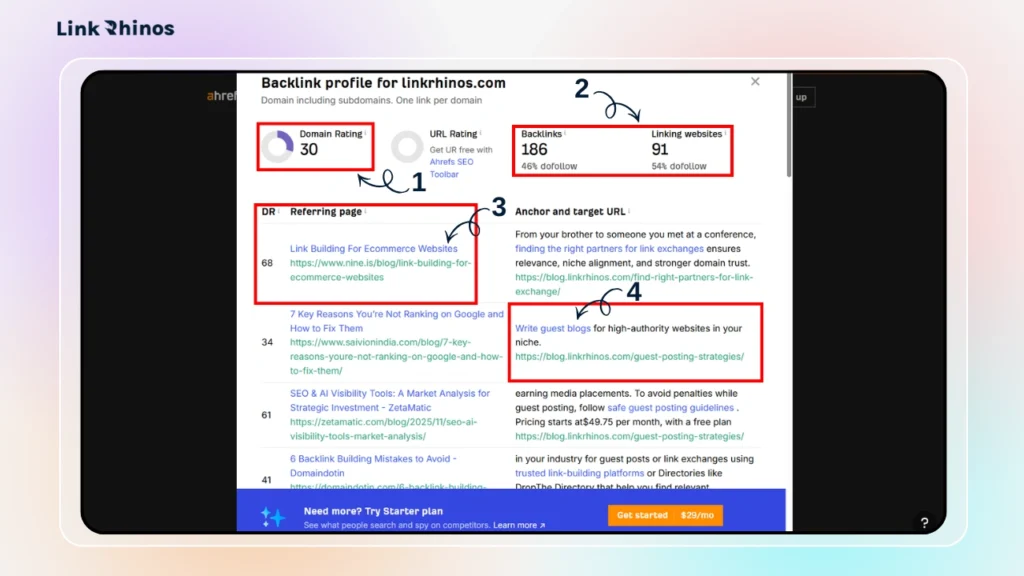
Before you validate a site before a link exchange, this is the fastest free sanity-check available. The limitation is the top-100 cap – you’re not seeing the full profile, but for an initial read, it’s more than enough.
Moz Link Explorer
The Moz Backlink Checker – Moz Link Explorer (moz.com/link-explorer) offers 10 free searches per month. It shows Domain Authority (DA), total linking domains, and a sample of inbound links for any domain you enter.
How to Use Moz Backlink Checker:
Step 1: Go to moz.com/link-explorer
Step 2: Enter the domain you want to research and click Get free link data
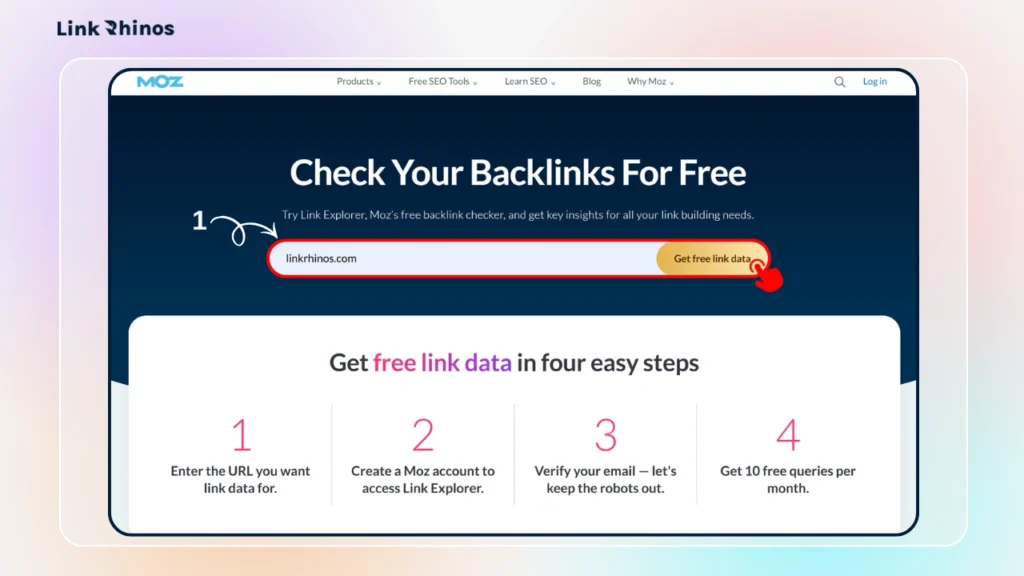
Step 3: Analyze the results:
- Check Domain Authority (DA): Moz’s 1–100 authority score.
- View Linking Domains: Total number of unique referring domains.
- Browse Inbound Links: See individual backlinks along with spam score and DA.
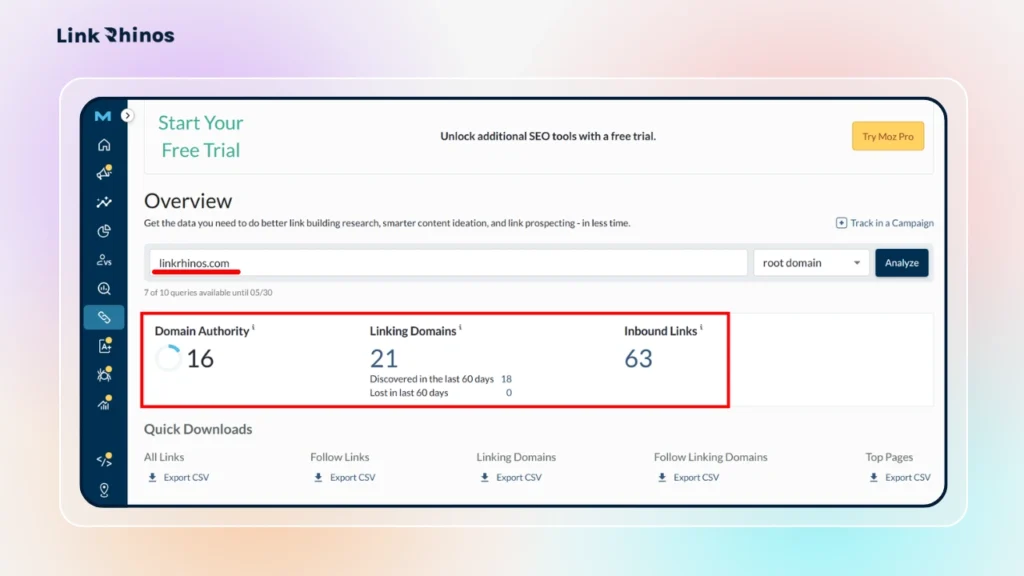
The Moz Backlink Checker is the weakest free option for data depth, but DA is the metric many site owners still quote when discussing exchange opportunities. Use it for fast partner validation when someone gives you their DA, and you want to verify it without a paid tool.
Ubersuggest
The Ubersuggest Backlink Checker (neilpatel.com/ubersuggest) offers a free backlink report that shows referring domains, domain score, and a sample of linking pages with anchor text. Free accounts are limited to a set number of daily searches.
How to Use Ubersuggest Backlink Checker:
Step 1: Go to Ubersuggest Backlink Checker.
Step 2: Enter your domain and click “Search.”
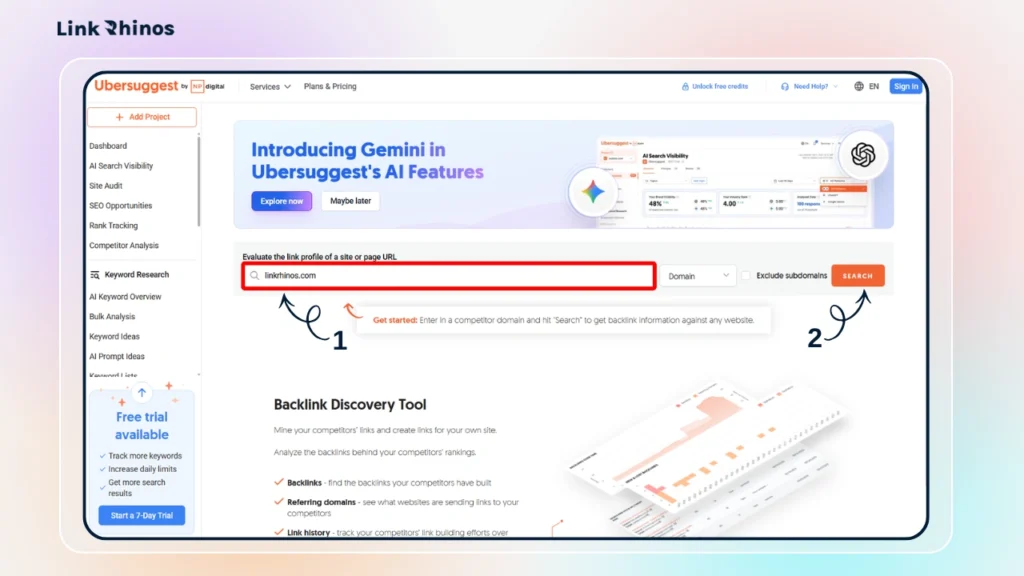
Step 3: Review the overview metrics at the top:
- Domain Authority (DA)
- Referring Domains
- Total Backlinks
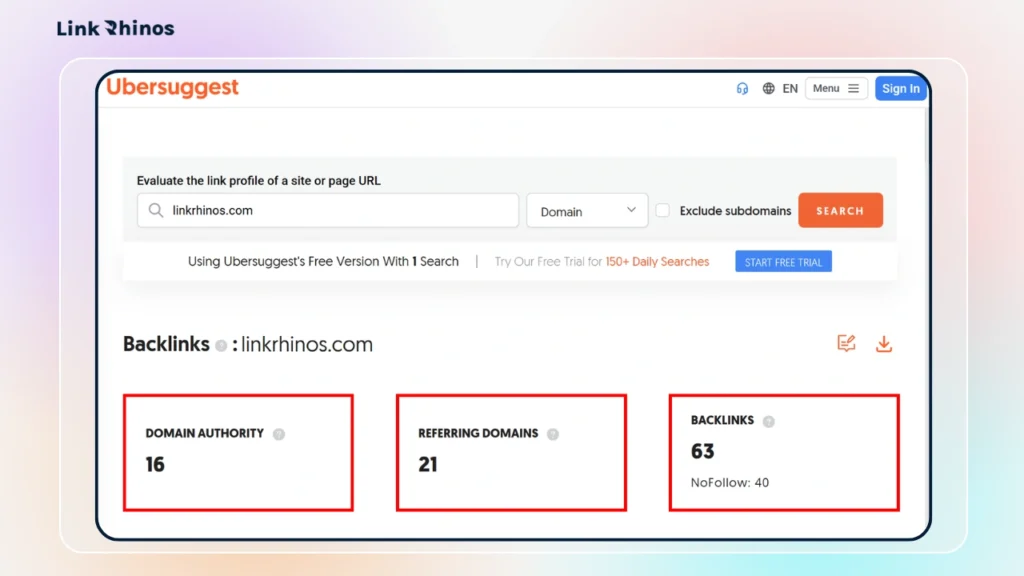
Step 4: Scroll down to analyze details:
- Backlinks table: See linking pages, anchor text, spam score, and DA
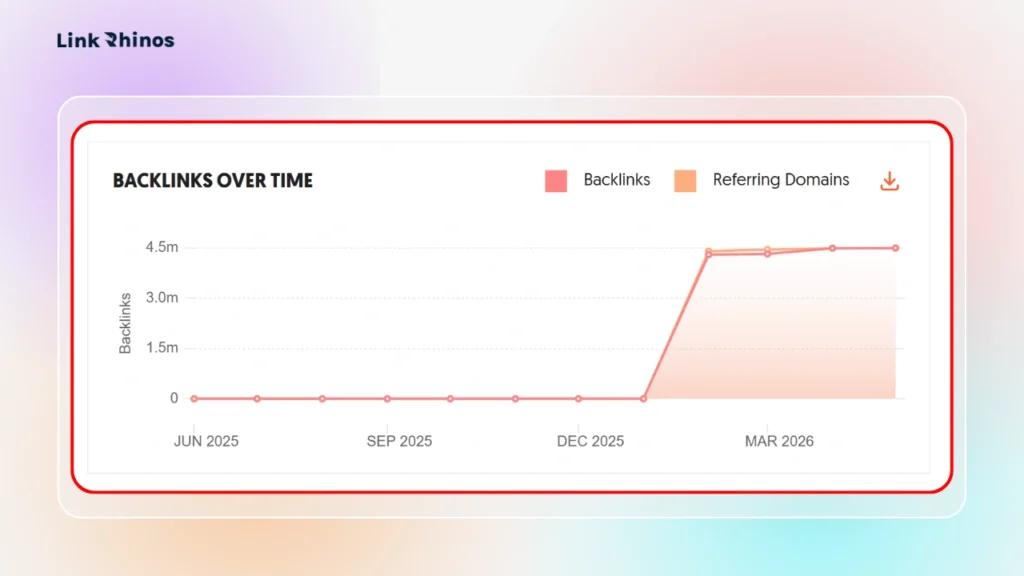
- Anchor text distribution: Understand how your links are optimized
- Referring domains by DA: Evaluate link quality
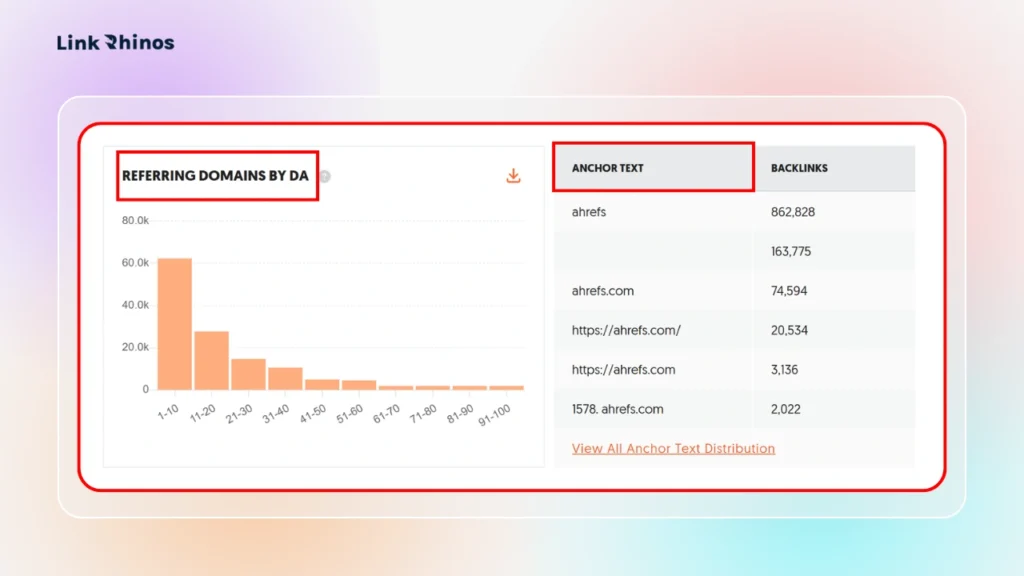
The Ubersuggest Backlink Checker’s database is not as fresh as Ahrefs or Semrush’s. Use it for a first look at a smaller site’s profile – especially when evaluating a partner you’ve never encountered before – rather than for deep research.
What Free Tools Can’t Do
Free tools are useful for basic backlink checks, but they fall short in three critical areas:
- Competitor Gap Analysis
Free tools cannot properly compare your backlink profile with competitors and highlight missed link opportunities. - Velocity Data
Free tools don’t show whether a website’s referring domains are growing or declining over time. This makes it hard to understand link-building momentum. - Full Anchor Text Breakdown
You won’t get a complete analysis of anchor text ratios across the entire backlink profile, which is essential for identifying over-optimization or spam signals.
Best Paid Tools to Find Backlinks to Any Site
If you want to know how to find all backlinks to a website your competitors are earning, a paid tool is the only reliable way. If you’re building links seriously – even at low volume – it pays for itself faster than most people expect. The data precision and gap analysis capabilities alone save more time than the subscription costs.
Ahrefs Site Explorer
Ahrefs is the benchmark for backlink research. While the Ahrefs Backlink Checker free version is capped at 100 results, Site Explorer gives you the full picture. Its crawler processes billions of pages continuously, keeping data fresher than most competitors. You get full referring domain history, individual link data with dofollow/nofollow status, anchor text per link, DR of every linking domain, and the date each link was first discovered. The Starter plan runs around $129/month.
How to Use Ahrefs Site Explorer to find backlinks of any website:
Step 1: Go to Ahrefs Site Explorer and enter your domain.
Step 2: On the Overview page, check:
- DR (Domain Rating)
- Referring domains
- Total backlinks
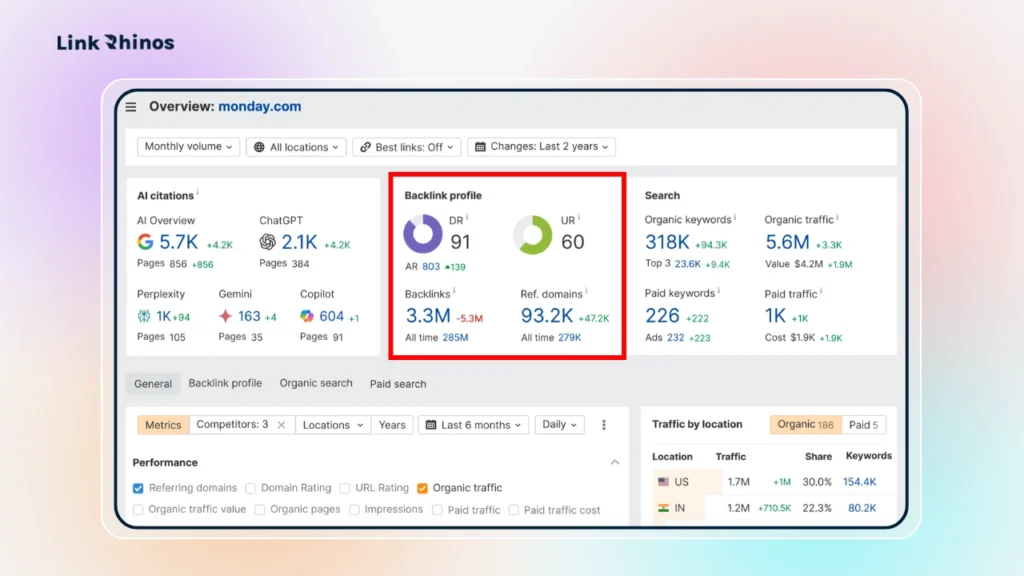
Step 3: Click Backlinks in the left sidebar:
- View all linking pages, anchor text, DR, and link type
- Use the New / Lost filter to track recently gained or lost backlinks
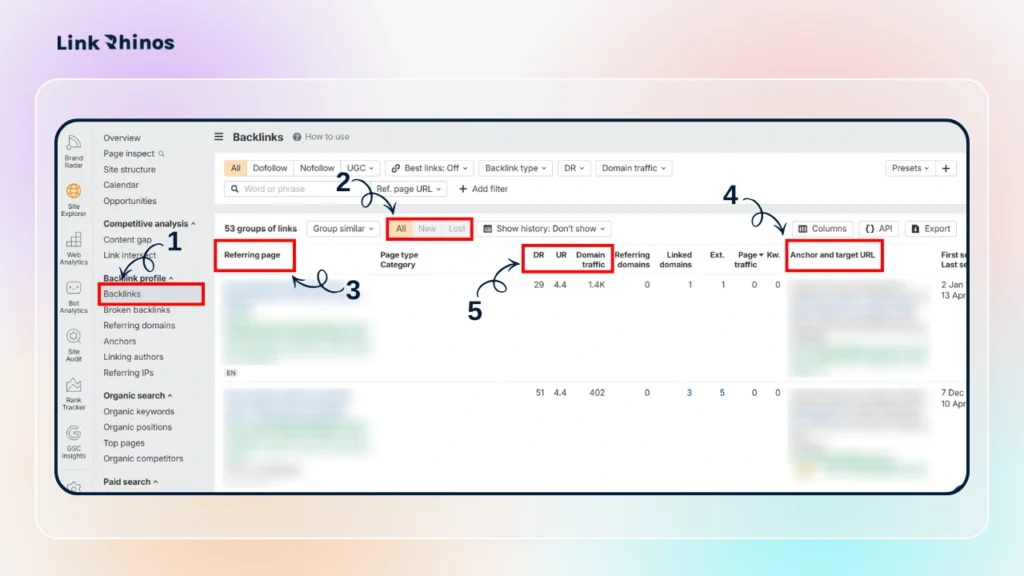
Step 4: Click Referring domains:
- See unique websites linking to you
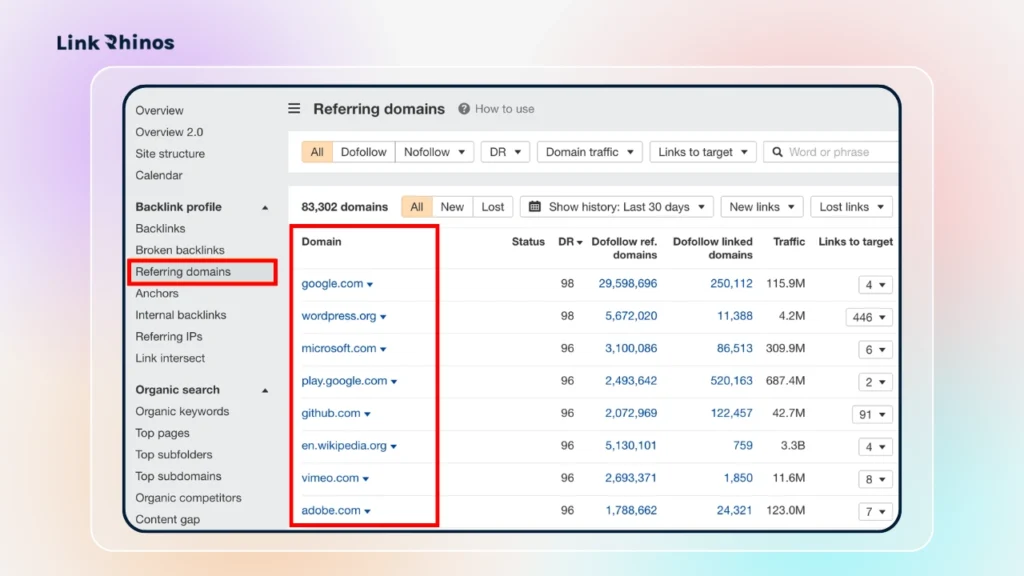
Step 5: Click Anchors:
- Analyze anchor text distribution
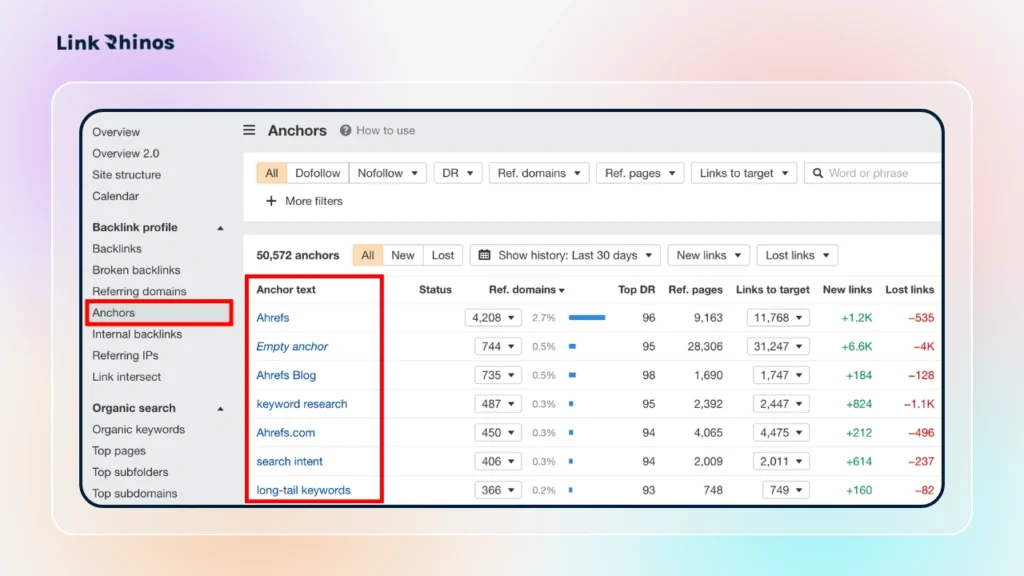
For competitor research specifically, use Link Intersect (under the More dropdown): enter your domain and up to ten competitors to surface domains linking to them but not to you. Once you understand how to find the backlinks of a website using Site Explorer, competitor gap analysis becomes straightforward.
Semrush
The Semrush Backlink Checker covers link research comprehensively and has one clear advantage over Ahrefs: its Backlink Gap tool is faster and more intuitive for competitor gap analysis. The Pro plan starts at $139.95/month.
How to Use Semrush Backlink Checker:
Step 1: Go to Semrush → SEO → Link Building → Backlink Analytics.
Step 2: Enter your domain and click “Analyze.”
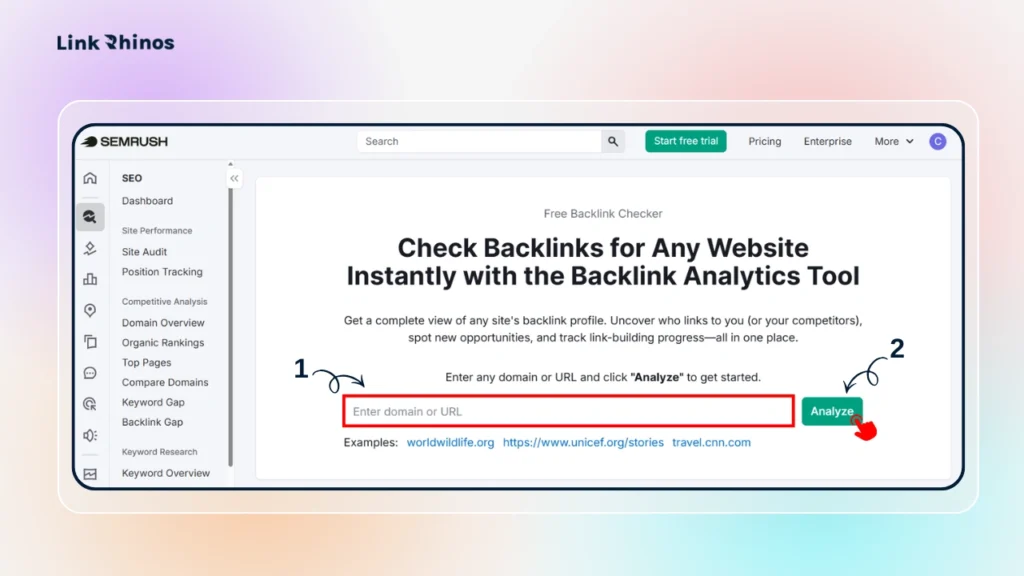
Step 3: On the Overview tab, check:
- Authority Score
- Referring Domains
- Backlinks
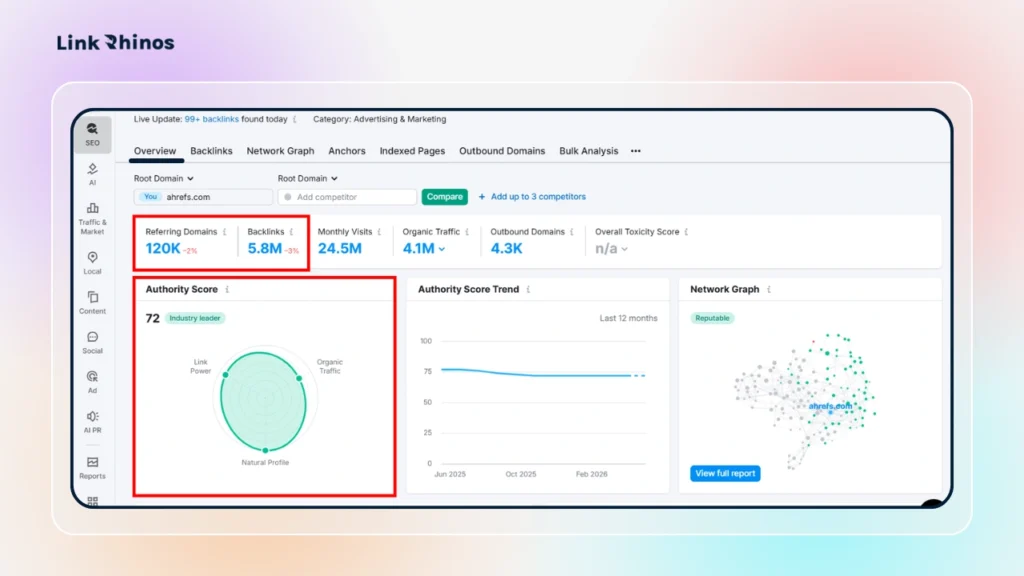
Step 4: Use the top tabs to explore data:
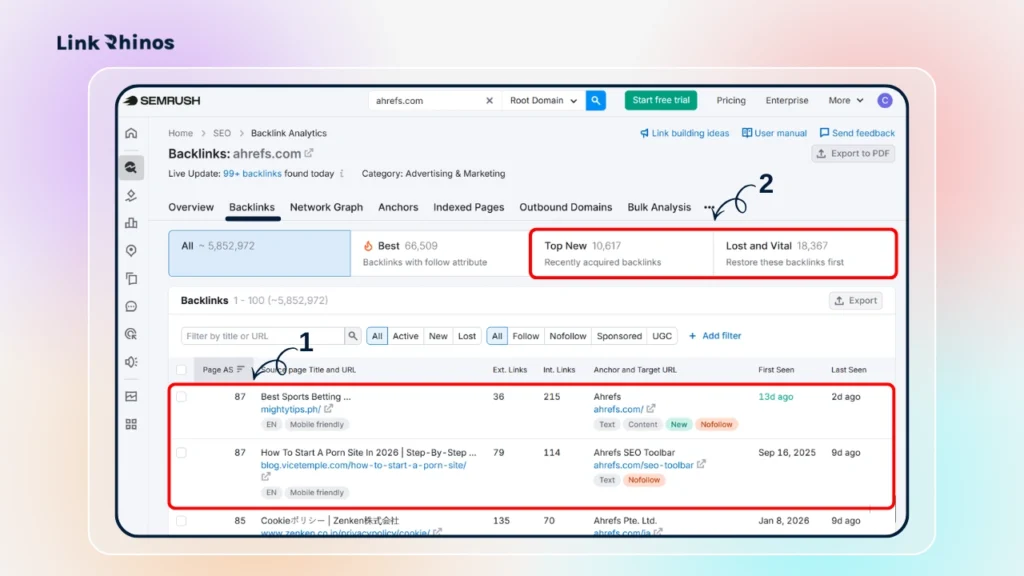
- Backlinks: Individual links (URL, anchor, follow/nofollow, authority)
- New & Lost tabs (inside Backlinks/Referring Domains) to track recent changes.
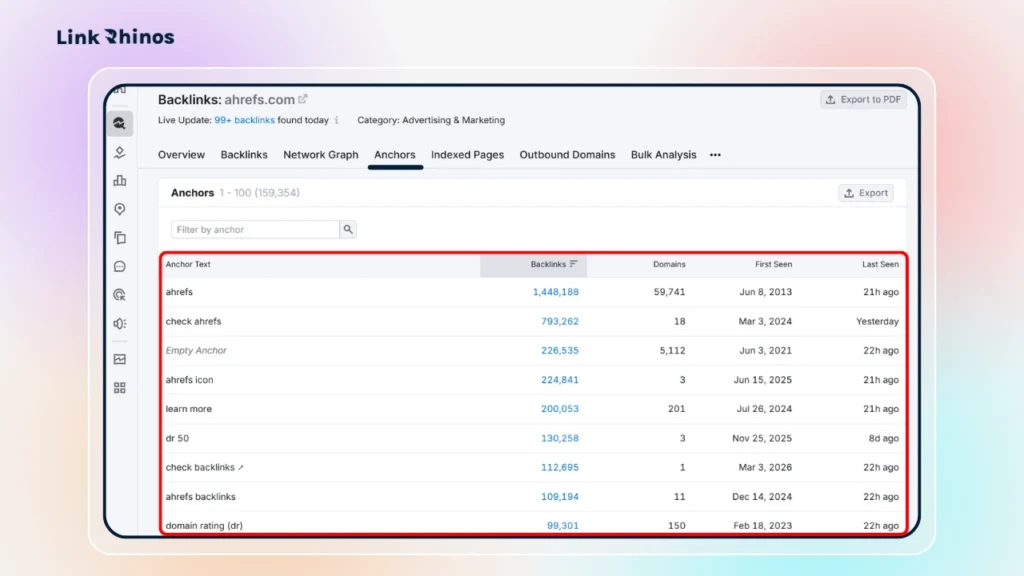
- Anchors: Anchor text distribution
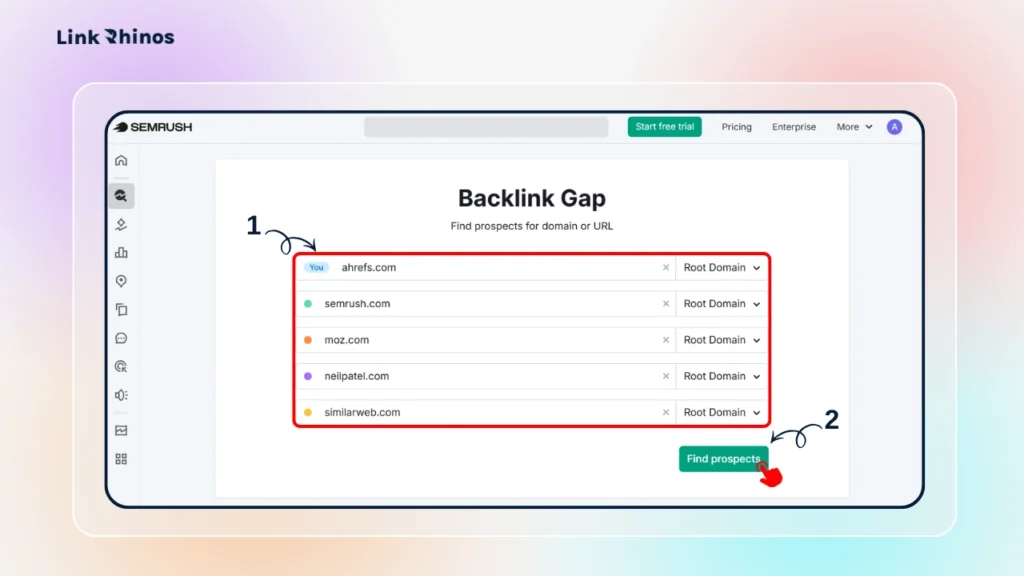
Step 5: For competitor analysis, go to Backlink Gap:
- Enter your domain + competitors
- Use the Best filter to find missed link opportunities
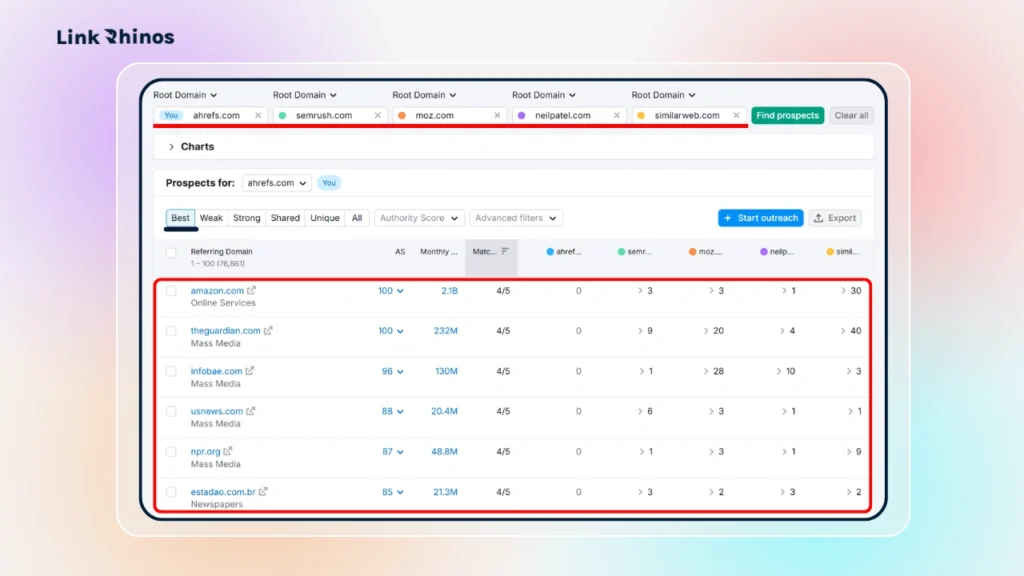
If gap analysis is your primary workflow, the Semrush Backlink Checker is the right starting point. For everything else – data freshness, crawl depth, and velocity tracking – Ahrefs has a consistent edge.
Majestic
The Majestic Trust Flow Checker is one of the oldest link databases in the industry. Its two proprietary metrics – Trust Flow and Citation Flow – measure quality differently from DR or DA. Trust Flow scores a site based on the quality of sites linking to it. Citation Flow scores based on raw link volume. A high Citation Flow with a low Trust Flow signals lots of links from low-quality sources – a useful red flag that DR scores can sometimes miss. It has a free tier for basic checks and paid plans from $49.99/month.
How to Use Majestic Trust Flow Checker:
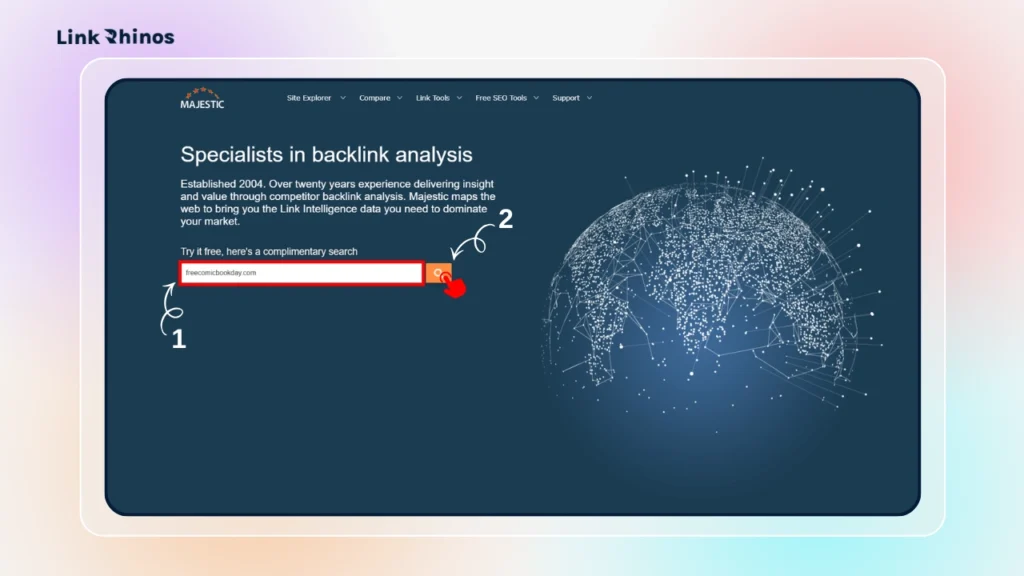
Step 1: Go to majestic.com and enter any domain in the search bar.
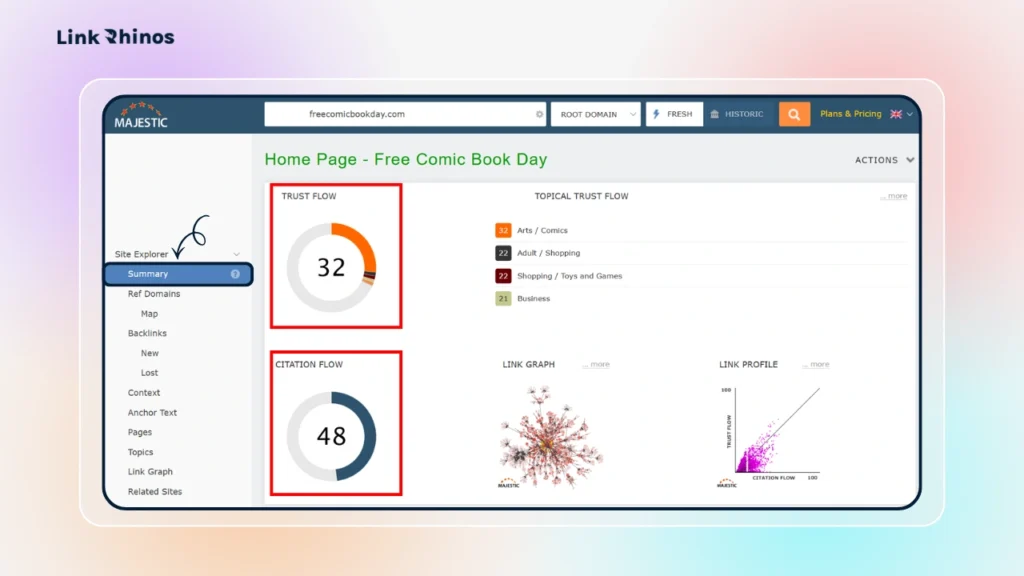
Step 2: On the Summary tab, check Trust Flow (TF) and Citation Flow (CF) – focus on the ratio (a high CF vs TF can be a red flag)
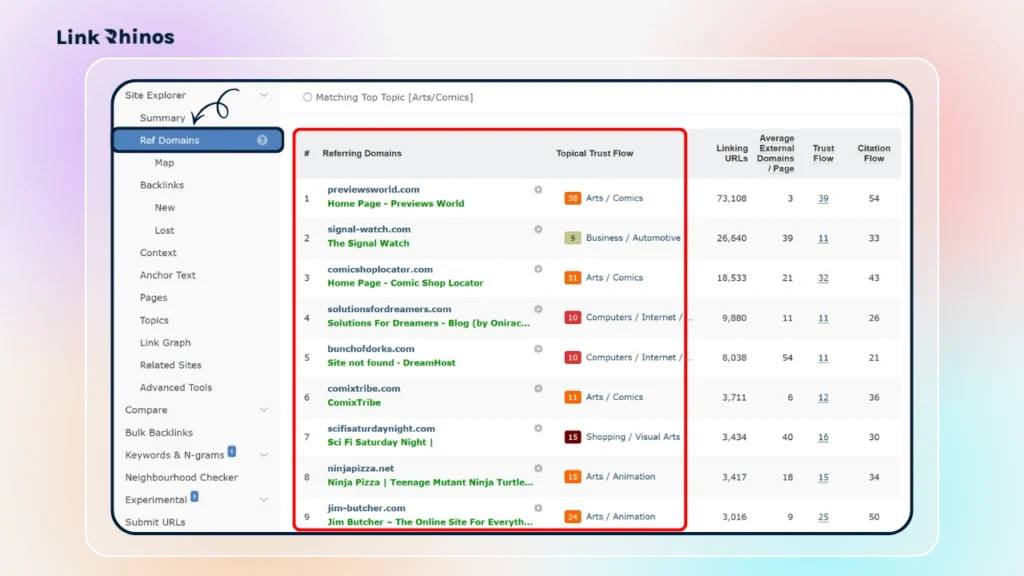
Step 3: Click Ref Domains to view all referring domains with their Trust Flow
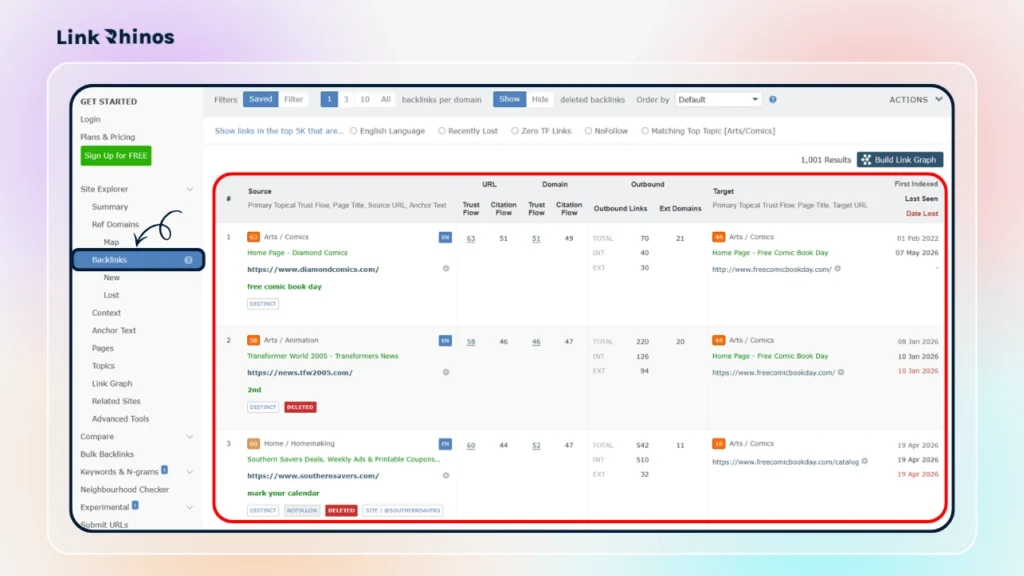
Step 4: Click Backlinks to see individual links – source URL, anchor text, and link type
Step 5: Use the Anchor Text tab to review anchor distribution
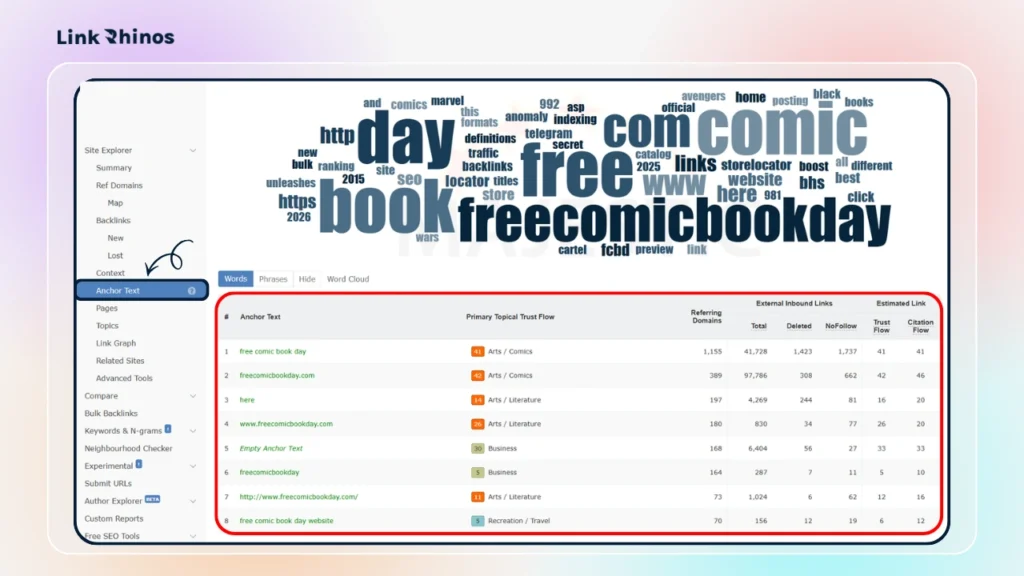
Use the Majestic Trust Flow Checker as a secondary quality check, not your primary research tool. If a site’s DR looks solid in Ahrefs but its Trust Flow is far below its Citation Flow in Majestic, that discrepancy is worth investigating before you pursue a link exchange.
4 Metrics to Look for in a Backlink Profile
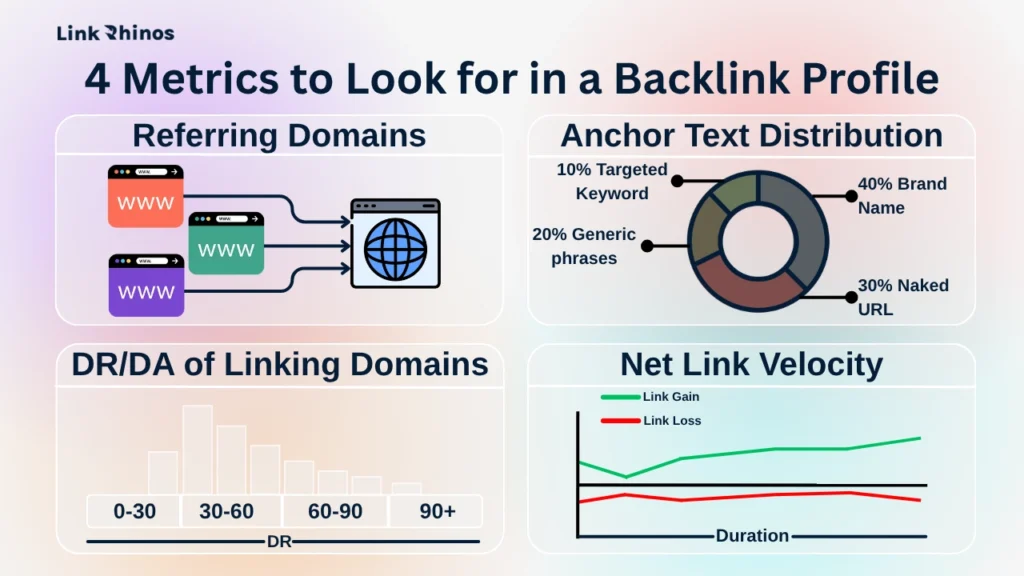
Most people open a backlink report, see a big DR number, and close the tab satisfied. That’s not analysis – it’s a false signal. These four metrics are what you should actually be looking at, in this order.
1. Referring Domains
This is the only number that matters at a glance. Referring domains = how many distinct websites are linking to a domain. Total link count is irrelevant without it.
A site with 40,000 links from 12 domains is far more fragile than a site with 8,000 links from 900 domains. The first depends on 12 editorial decisions staying intact. The second can lose 50 referring domains and barely move in rankings.
What to check: Open Referring Domains in any tool and look at the trend graph, not the absolute number. Steady growth of 5–15 new referring domains per month over 12+ months is a healthy, durable profile. A flat line for 18 months means the site stopped building. A sudden spike followed by a flatline usually means a one-off press hit or a paid campaign that ran once.
2. Anchor Text Distribution
Anchor text is the clickable text used in a link. A natural profile looks like this: the majority is branded (company or site name), then bare URLs, then generic phrases (“read more,” “here”), then a smaller portion of descriptive topic anchors, and a very small slice of exact-match commercial terms.
Red flag: If 30–40% of anchors are exact-match commercial keywords (“best CRM software,” “buy project management tool”), the profile has almost certainly been manipulated. Natural linking doesn’t produce that distribution – editors don’t think about keywords when they link to something they found useful.
Also worth checking: a profile with zero nofollow links is unnatural. Real-world linking always produces some nofollow proportion. Understanding how nofollow vs dofollow links split across a profile tells you whether it looks organic or engineered.
3. DR/DA Range of Linking Domains
DR (Domain Rating, Ahrefs) and DA (Domain Authority, Moz) are logarithmic scales. A jump from DR 20 to DR 30 takes far less effort than DR 50 to DR 60. Use these ranges when deciding which sites to target or partner with:
| Situation | Target DR range |
|---|---|
| Link exchange partners (your site DR 15–45) | DR 25–55 |
| Gap analysis outreach targets | DR 30–70 |
| Avoid chasing | DR 70+ unless you have brand leverage |
A DR 25 domain pursuing DR 70+ exchange partners is wasting time – the value mismatch makes genuine exchange unlikely on both sides. When you find the right link exchange partners, matching by DR range is the first filter to apply.
4. Net Link Velocity (Growth vs Loss)
Link velocity is how fast a site is gaining or losing referring domains. Most paid tools show this as a graph. What you’re looking for is net growth – new domains added minus domains lost.
A site adding 20 new referring domains per month but losing 18 is essentially flat. That looks like growth on the surface, but it isn’t. Sites with strong, compounding authority have net positive velocity consistently – even if the monthly numbers are small. Use the New & Lost tab in Ahrefs or the referring domains trend in Semrush to pull this picture for any domain you’re researching.
Difference Between Total Backlinks and Referring Domains
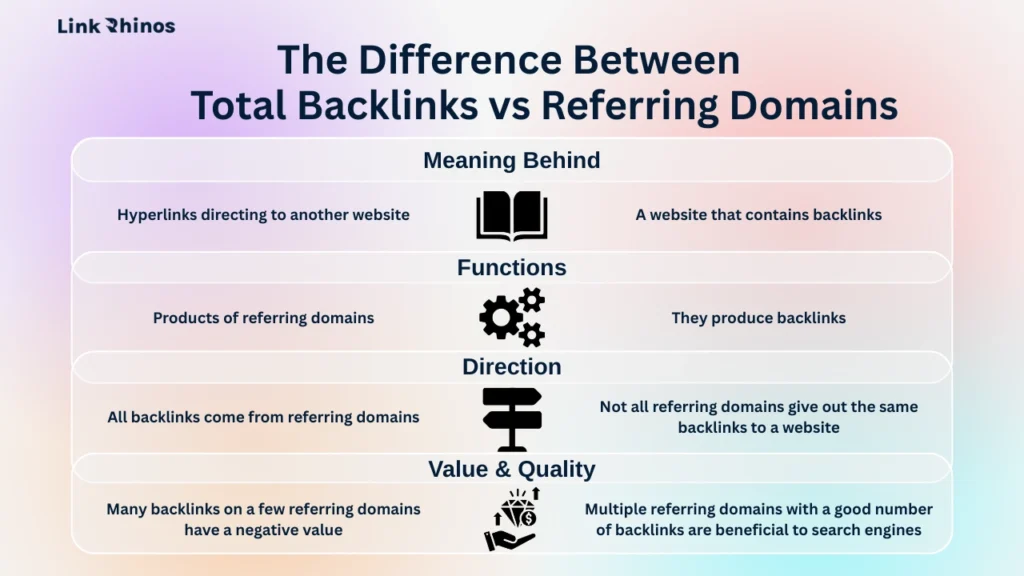
Total backlinks is the raw count of every link pointing to your site. One domain can link to you 200 times – from 200 different pages – and that counts as 200 inbound links but only 1 referring domain.
Referring domain count is the number that actually matters. It represents the number of distinct websites linking to you. Google treats each unique domain as a separate editorial vote. Getting 200 links from one site does not carry the same authority weight as getting one link each from 200 different sites.
When you need to know how to find backlinks to a site – yours or a competitor’s – always lead with referring domain count first. Total link count without that context is close to meaningless.
Bottom Line
The gap between where your link profile stands and where it needs to be is not a mystery. It’s a list – a specific, filterable list of domains that have already decided your niche is worth linking to.
Pull the data. Filter it properly. Work through five targets a week. That’s the entire process.

Your gap analysis tells you where the links should come from. LinkRhinos matches you with vetted, niche-relevant partners already active in your space – no cold outreach, no guesswork required. → linkrhinos.com/register